I was able to stay away from socially hyped Wordle for a long time, but recently started to take a look at it. Despite my hesitation it is a great game and I really like it.
If it weren’t for my limited english skills and a profound lack of vocabulary. Just to come up with any 5-letter word was a challenging task, not to speak of finding THE right word.
So I set out to search for sites showing lists of words, which there are many around. Unfortunately none of those lists provided all the features I wanted for filtering: get me all words with an “A” on second position and a “Y” anywhere but not on position 2+3.
A long list of words and a need for filtering? That sounded like a perfect opportunity to build an APEX application to help me there.
As you already know from my previous comparison posts (e.g. this one), I always start by looking at the changes on APEX View’s and API’s. This will reveal all the important fundamental changes. Of course we won’t catch UI changes this way, but most features are based on Metadata/View/API changes, so this approach will give us a good overview of changes.
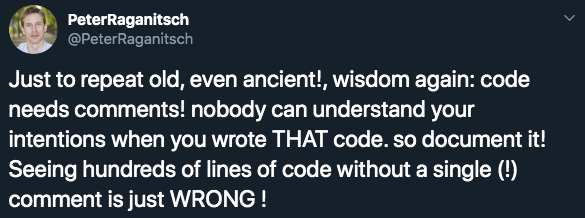
After that I turned away from Twitter, went to sleep, got up again, and had an awesome day with the family. Until I looked at my Twitter responses and mentions.
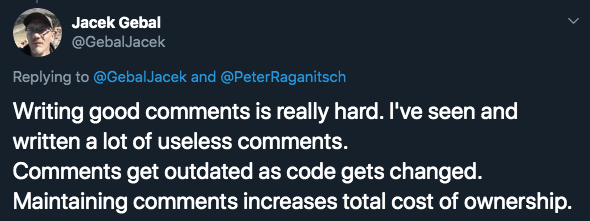
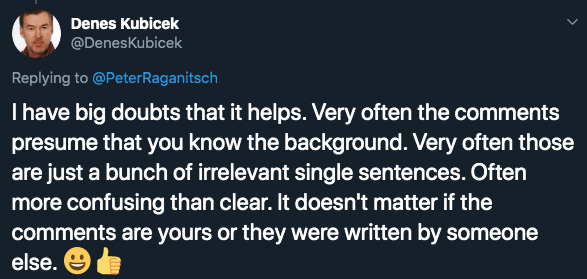
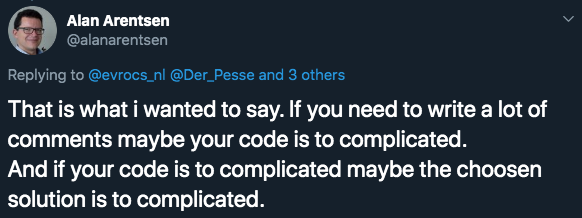
Here are some examples:
This discussion steered a wrong way and partly painted a wrong picture and wasn’t what I was after. I WANT comments. I BELIEVE they are good and vital.
Just because some comments are unnecessary or wrong, doesn’t mean you shouldn’t comment at all.
The opposite is true: if you ever stumble across a wrong comment in some code, lets change it. Lets improve it. Lets fix it.
No matter how smart you think you are. No matter how “self explanatory” you think your genius code is. Comments are vital. Comments are there to explain the reasoning behind your (crappy?) code to OTHERS. They might not be as smart as you, they might not have the same information level as you.
Heck, for all we know they might not be #orclAPEX developers at all. I’ve seen Java guys (no offense) tempering with APEX applications. Mostly we see regular database developers, or former Forms developers diving into APEX. They need guidance and a bit more explanation of your “oh so smart code”.
Now get your personal feelings aside and do your job. Properly! And produce the most beautiful code, ever !
P.S.: I know, I know. Life is hard, there is no time. Nobody wants to pay you for extra time. But commenting your code is not extra time. Writing documentation about implementation details is not extra time. It is an essentialPART of software development.
If you are in a job that doesn’t give you the time to comment your code, think of a change.
Quick Note: this Friday, October 4th 2019, will be a morning event about extending Oracle APEX with Single Page Applications, Master-Detail, and Drag&Drop. In Vienna at the Oracle office.
A few years ago it was deemed state-of-the-art to store any kind of extra resources (images, css/js-files) directly on the webserver.
Of course this was just the best-practice, left with many who were not able to follow because of company restrictions: no access to web server, not allowed to store files, too many regulations, and so on.
Luckily APEX 5++ gave us nicely working Static Application Files and Static Workspace Files. Now everyone is using those to store extra files.